


Rocket League
The Best Settings for Rocket League 2026
Rocket league is a game of milliseconds and millimeters. The smallest tweak in your camera angle or controller response can change the way you play. It can also separate from either having a nice clean hit or a really nasty hit. This guide is proven settings used by the top players in 2026, this includes players like Zen, Firstkiller, Monkey M00n and ApparentlyJack. This is optimized for competitive play, mechanical control, and smooth performance. When paired with Rocket League AI Coaching, these settings become even more powerful.


TL;DR
These are the exact settings top RLCS pros run in 2026.
- 110 FOV, 270 distance
- 0.05 deadzone
- Boost on RB, Air Roll on LB
- V-sync off, music off
Set these once and stop second-guessing your setup.
Optimized for Performance, Precision, and Consistency
Whether you’re grinding ranked, scrimming for a tournament or just trying to control the game, these settings put you in control everyday. Also bare in mind you can find other professionals players on this website.
View the video here: https://youtu.be/iEONSPj2Hoc
Gameplay Settings
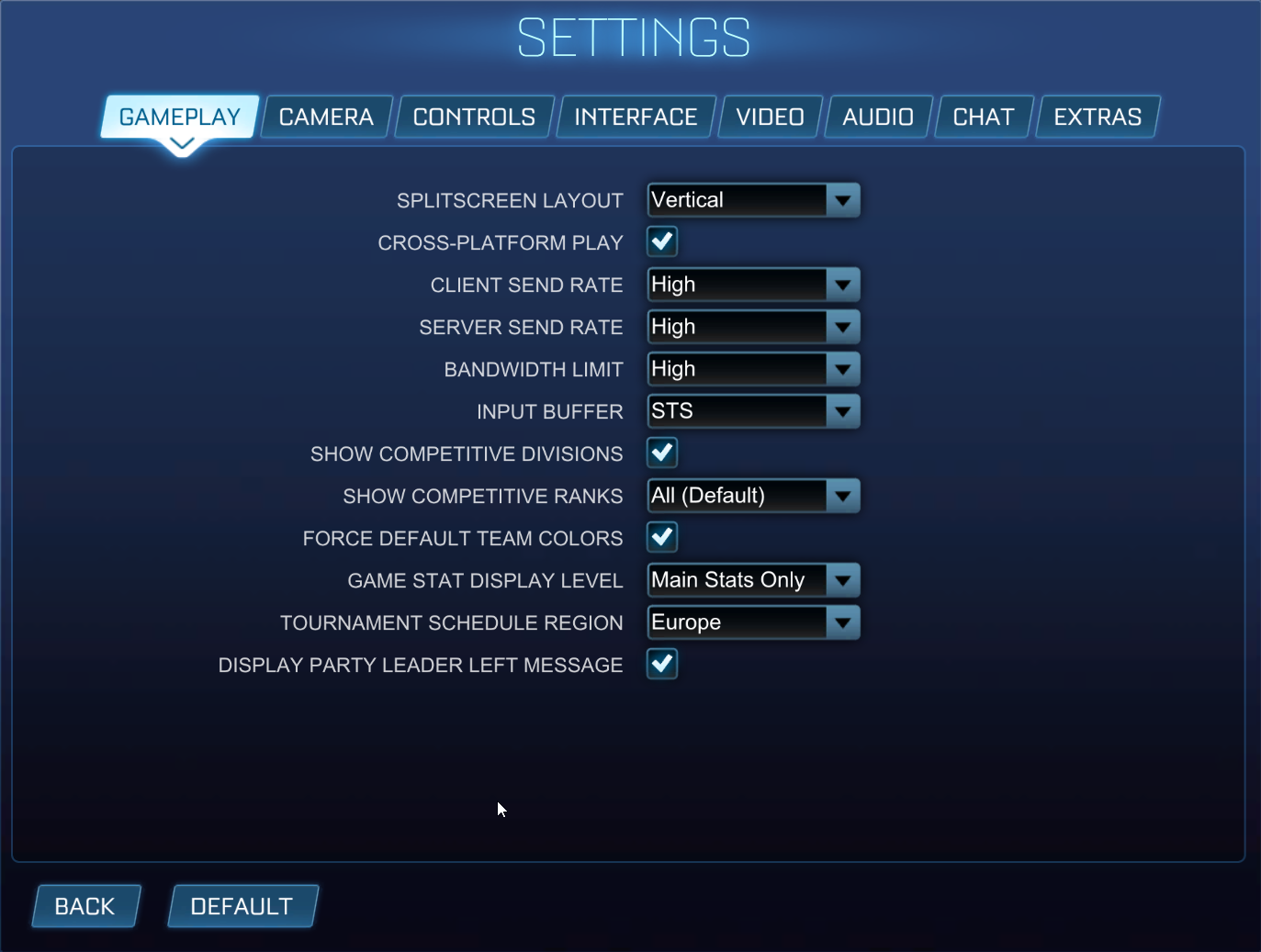
- Cross play - On
- Input Buffer - STS
- Show Competitive Ranks - all
- Force default team colors - On
Why Do Pros Use This?
STS offers the smoothest online experience and best replicates LAN input timing, Keeping cross-platform enabled can balance matchmaking.
Camera Settings
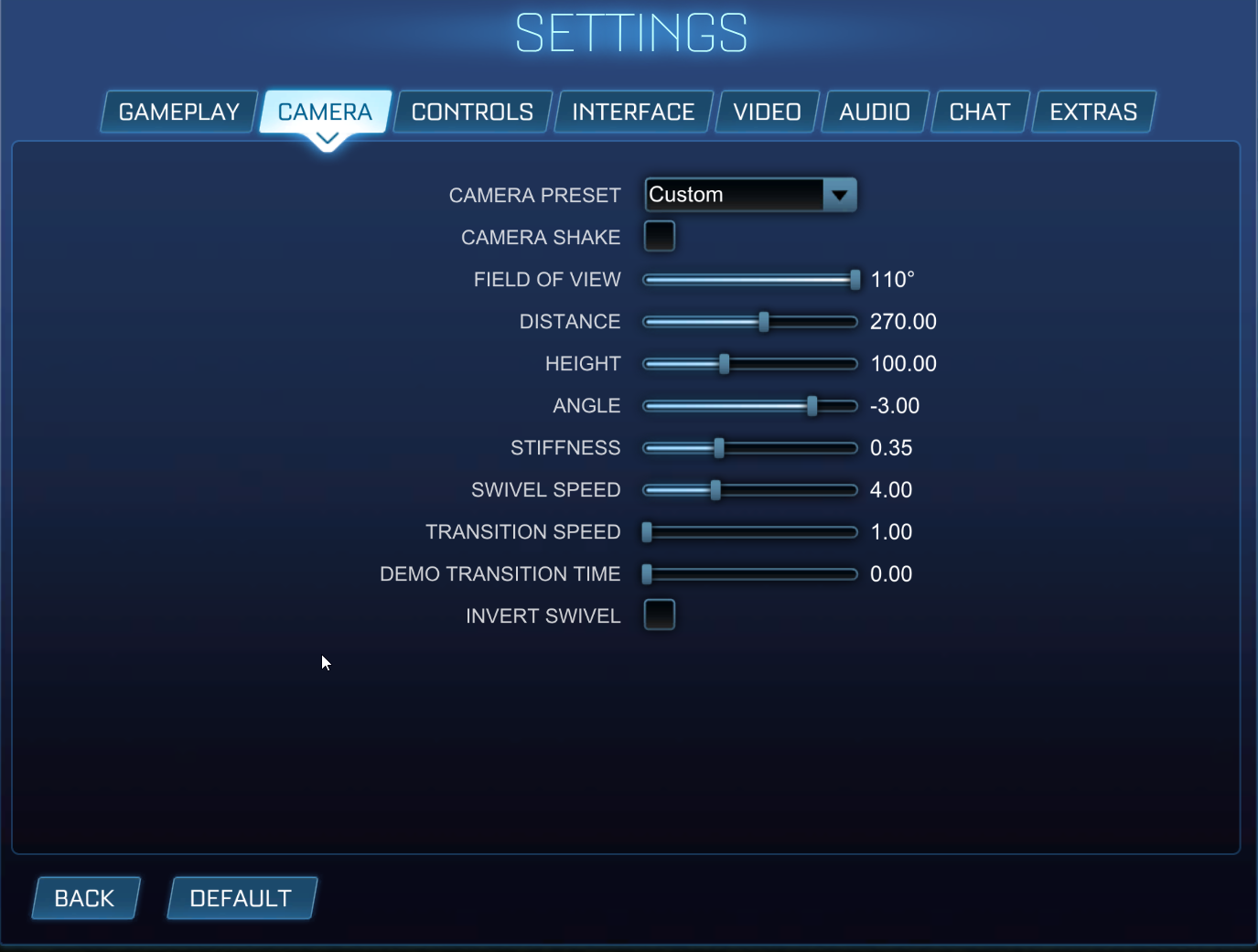
- Camera Shake - Off
- FOV - 110 = Maximizes Spatial Awareness
- Distance - 270 = Balanced between close control and full vision
- Height - 100 = Keeps car centered visually
- Angle - -3.0 = Clean aerial reads
- Stiffness - 0.35 = Natural car tracking
- Swivel speed - 4.0 = Fast enough for awareness without over correction
- Transition Speed - 1.0 = Smooth camera swaps
- Invert Swivel - Off = Optional preference
Why Do Pros Use This?
Almost every RLCS player uses 110 FOV and 270 distance. Lower stiffness gives better spatial judgment, especially when rotating or positioning for aerials.
Controller Settings
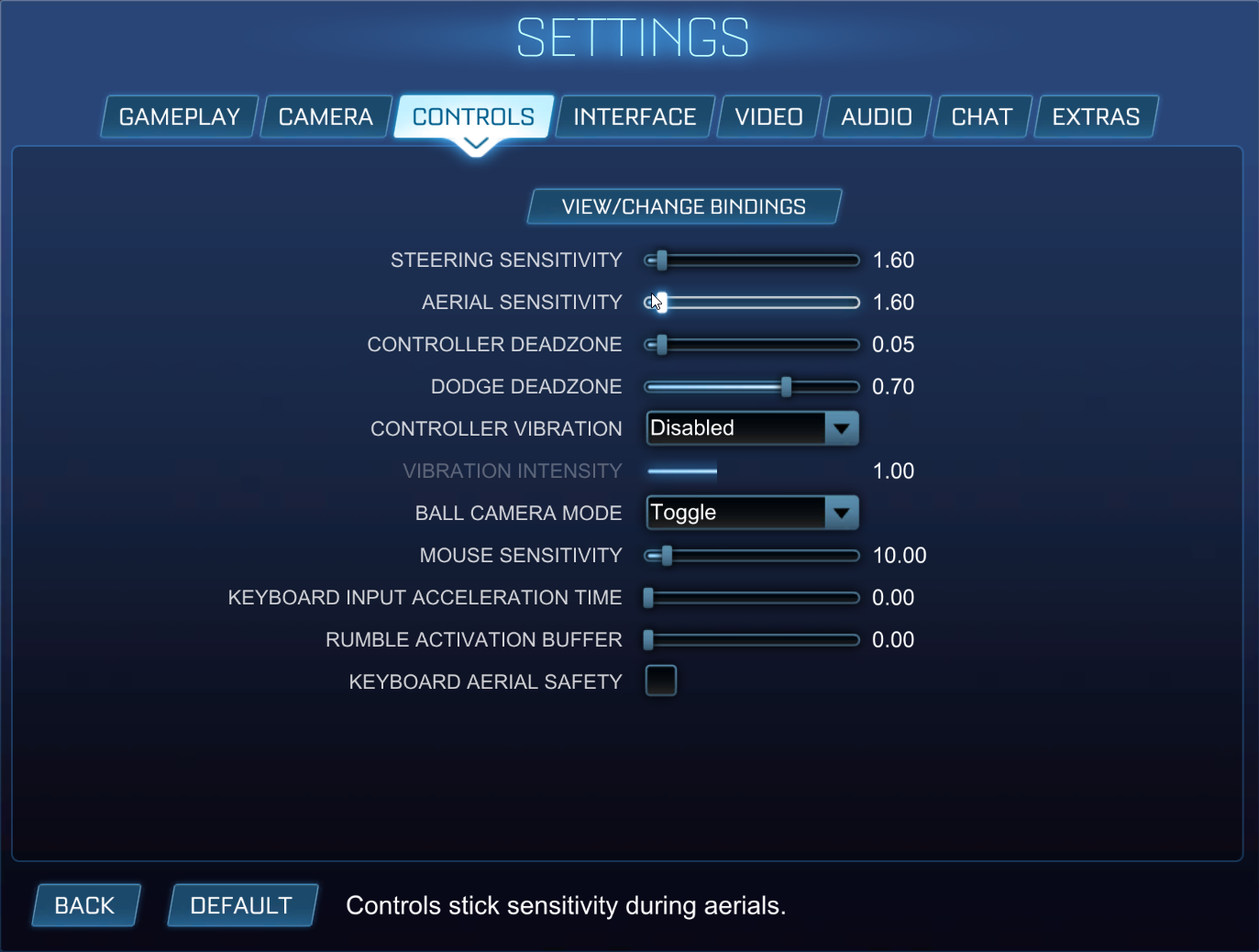
- Steering - 1.6 = Faster reaction time and sharper control
- Aerial Sensitivity - 1.6 = Smooth transition in air movement
- Controller Deadzone - 0.05 = Precise without Jittery inputs
- Dodge Deadzone - 0.70 = Prevents unwanted flips
- Controller Vibration - off = Reduces distraction
Why Do Pros Use This?
Low deadzone makes your stick move reactively. Combined with moderate sensitivity, it gives fine tuned control like Zen and M0nkey M00n, which is sharp, precise and consistent.
Controller Bindings (Used by pros in 2026)
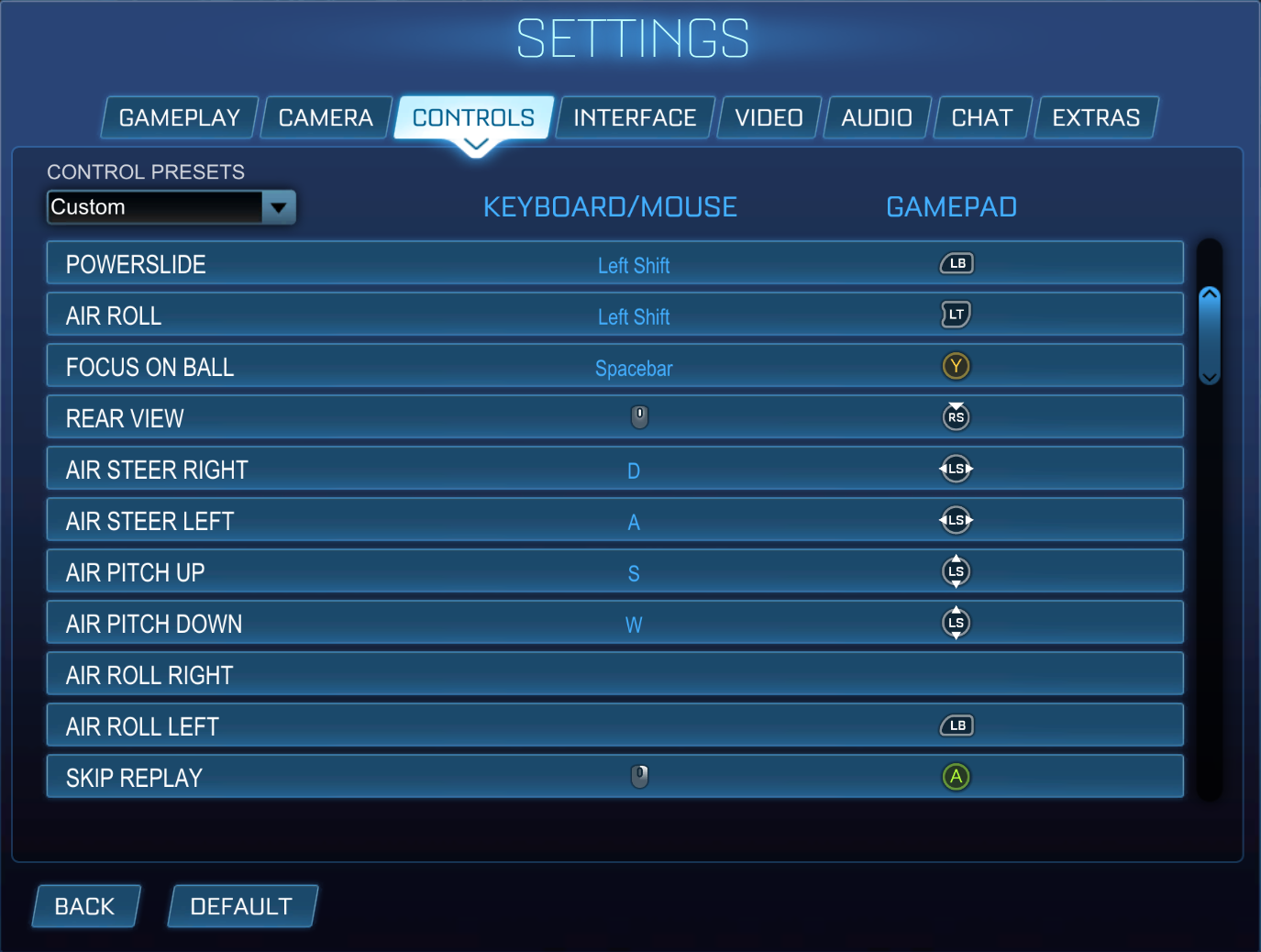
Here’s the layout that mirrors how most top tier pros use it, including Zen, Rise, M0nkey M00n and FirstKiller. Set up their buttons for instant reactions and perfect air roll control.
- Boost - RB - Lets you boost and air roll simultaneously.
- Powerslide / Air roll (your choice of normal or directional, personally would use directional) - LB= Ideal for controlling aerials.
- Normal air roll if you choose air directional - LB = just easy when you’re going up you don't need to reverse.
Why Are Pros Using These Settings?
RB for Boost + L1 for Air Roll Left is the gold standard among modern pros, it allows you to boost, roll, and adjust simultaneously without ever lifting your thumb from the right stick.
LB for Powerslide / Air Roll (directional) helps during half-flips, recoveries, and stalls.
Separate Air Roll Left & Normal Air Roll gives flexibility, precision in aerials and flow for recoveries.
Interface Settings
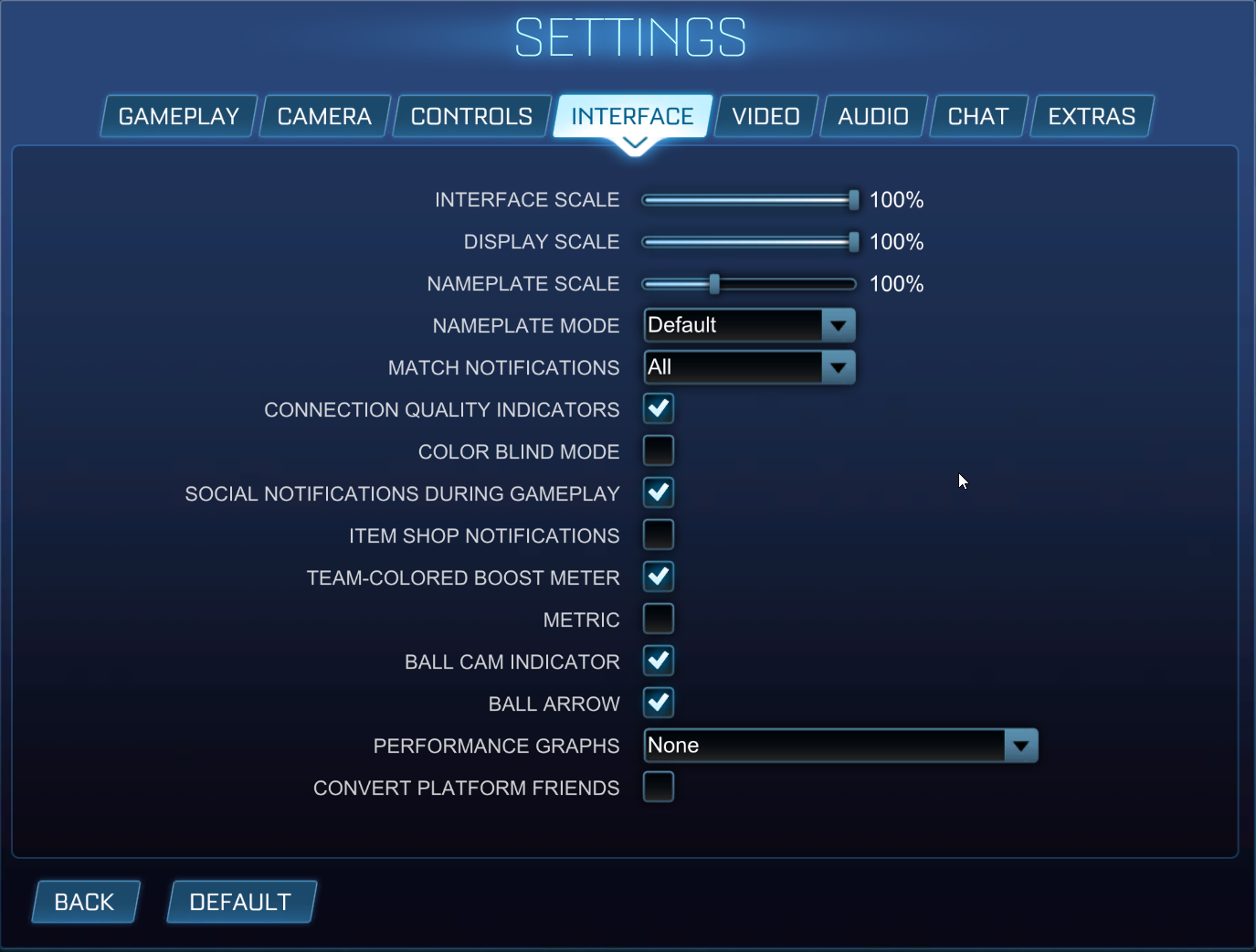
Pretty much default on this tab. You can raise the Nameplate Scales to up to 130% just to see the opponents nameplayer bigger. Also can use a team colored boost meter just to be sure you know what team you’re playing.
Video Settings
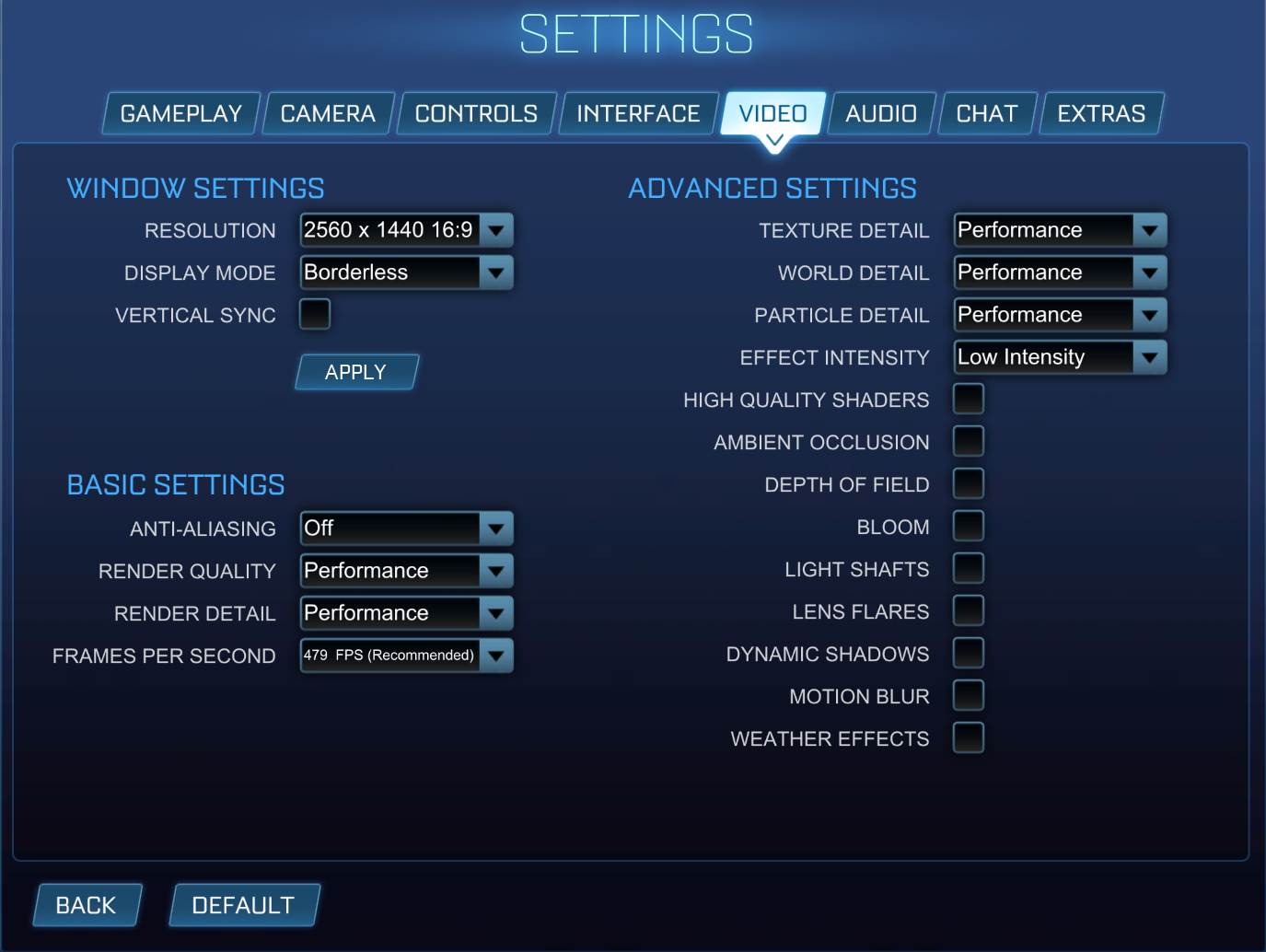
- Display mode - Fullscreen = Lowest input delay
- Resolution - Your monitor size (usually the top) = Standard competitive resolution
- V-sync -off = Eliminates input lag.
- FPS cap - Recommended = Matches monitor refresh + keeps latency low
- Render quality - High performance = Boost frame stability
- Anti Aliasing - off = removes unnecessary smoothing
- Effect Intensity - Low or performance = Depends if you’re streaming / making videos. If not, performance is good.
- Remove graphics = smoother game play and relaxes your FPS.
Audio Settings
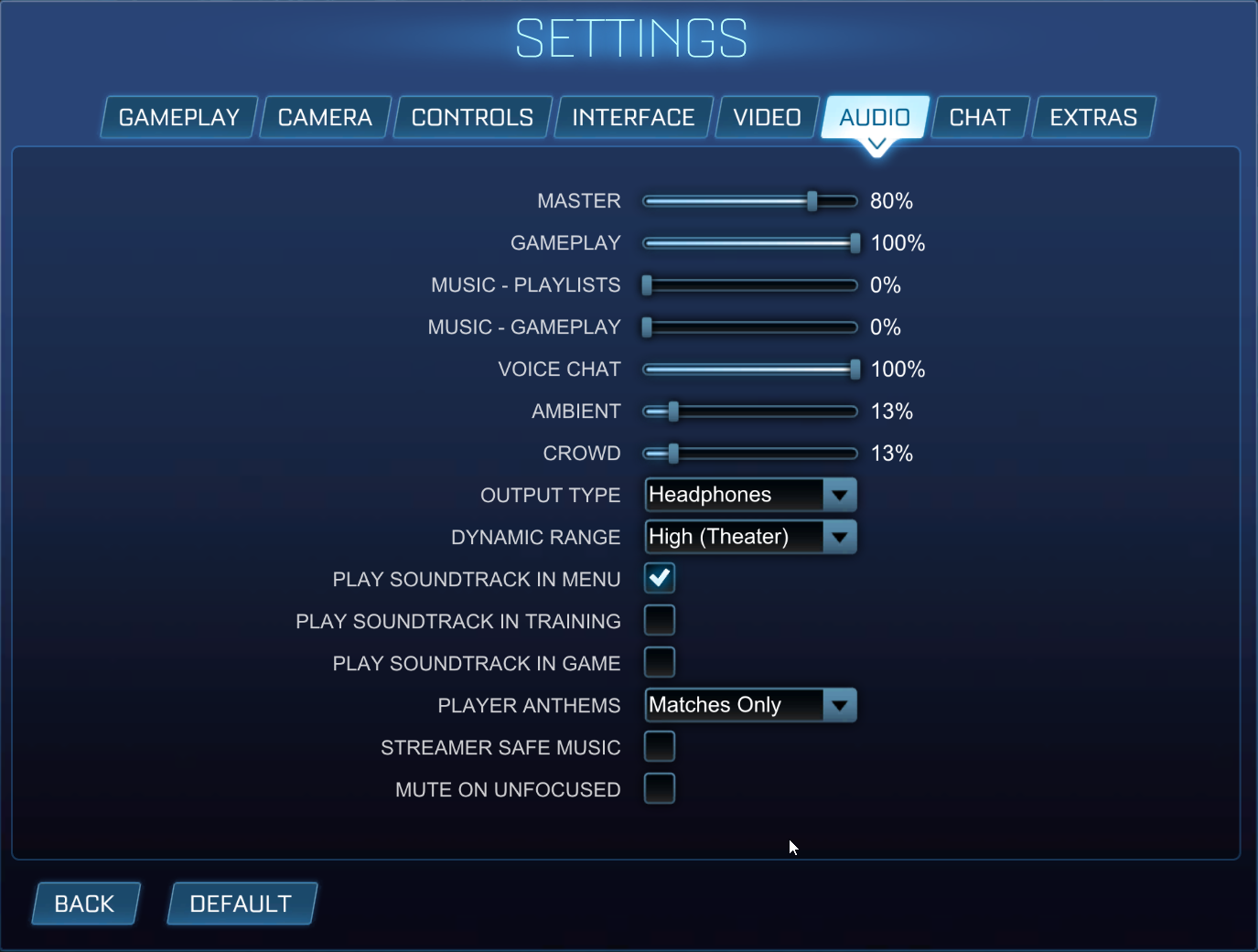
- Master volume - 80% = Balanced Clarity
- Gameplay - 100% = Keeps core sounds sharp
- Music - 0% = Removes menu noise (have your own playing)
- Ambient/crowd - 0-20% = Optional for atmosphere
- Voice chat - 100% = Clear team chat for coms.
- Mute on unfocused - Off = When browsing off and your mate queues up. You would hear the timer go.
Why Would Pros Use This?
Audio cues often arrive before visuals. Like demos or touches. Keeping SFX high while cutting background noise sharpens their awareness.
Quick Chat
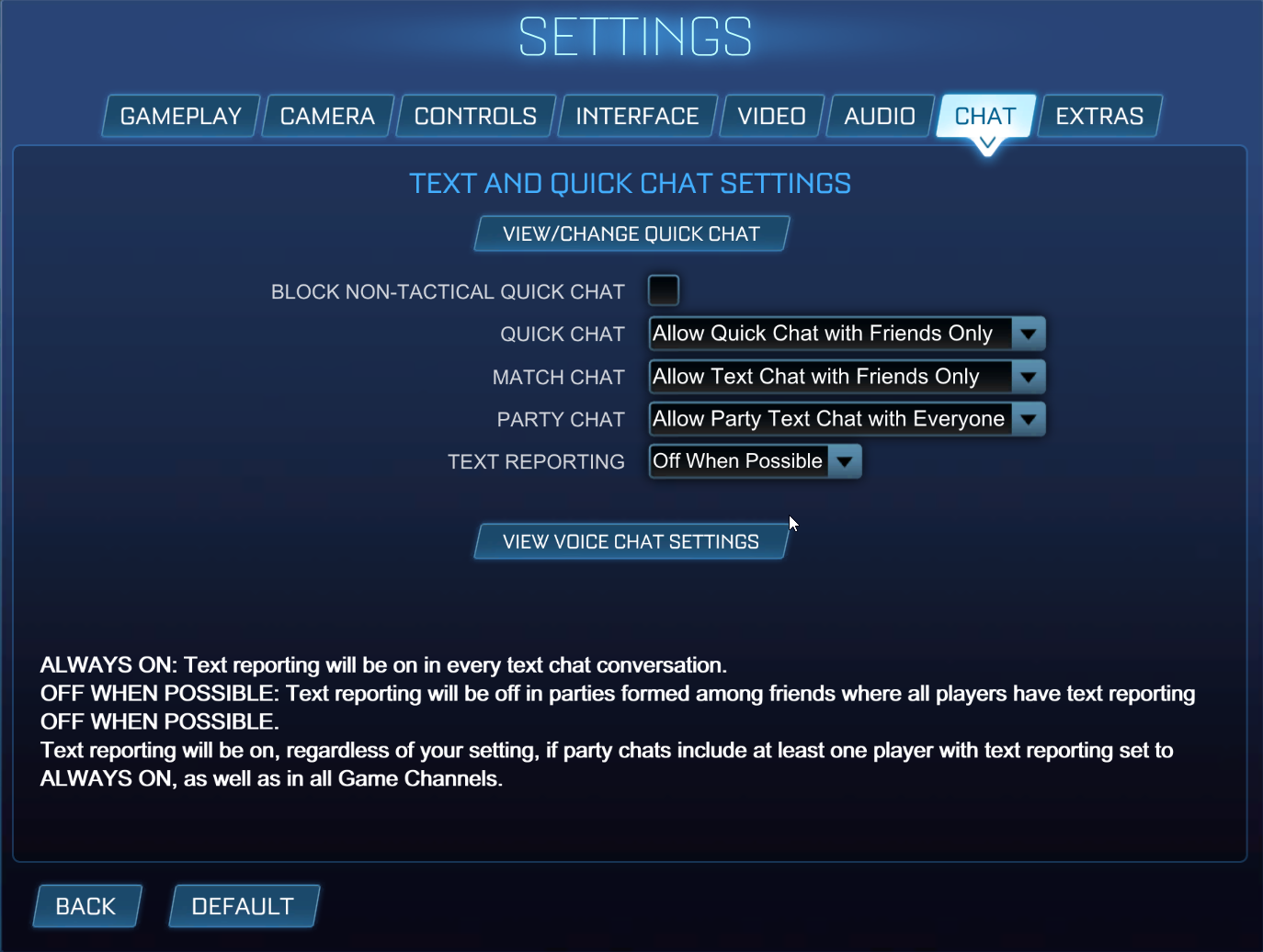
Quick chat is your own preference. When playing competitively, you have a short temper. I would strongly advise to turn this off as this can cause issues mentally and can lose focus to then become more tilted. However, if you can control your emotions and treat the games as learning material. Then use the quick chat.
Final Thoughts
Great players aren’t born with better mechanics, they remove obstacles that slow them down.
Optimizing your Rocket League settings is about giving yourself the cleanest, most consistent connection between mind and car.
Whether you’re learning rotations, perfecting air control, or grinding to SSL, the setup above reflects what the best players in the world use: simple, fast, and effective.
And just remember, only the pros know the META. I would also advise checking the pros using the rocket league tracker leader board and search them up on ballchasing.com. With this method. You can watch how they play with these controls.
Best of luck out there!


