


iRacing
How to Use iRacing Telemetry to Find Faster Lap Times: A Practical Guide
Telemetry analysis is fast becoming a popular way for sim racers to improve their speed and consistency in iRacing. If you are struggling to break through the 3,000 iRating barrier, you may want to consider utilising iRacing’s telemetry recording feature to understand where you’re missing out compared to the quickest drivers. Telemetry is useful at almost any skill level. By looking at your braking, throttle, steering, speed and racing line data, you can identify exactly where time is being gained or lost rather than relying purely on feel. Below, we’ll outline how to record telemetry in iRacing and describe how you can use it to help you become a faster, more consistent sim racer.


What is iRacing telemetry?
Telemetry is by definition the recording and transmitting of data from an instrument, which, in our case, is a virtual racecar.
In iRacing, telemetry records data from your session such as throttle position, brake pressure, steering angle, speed, RPM, gear selection and several other vehicle parameters. Once recorded, this data can be opened in telemetry analysis software and compared across laps or against another driver.
This makes iRacing telemetry particularly useful when you know you are losing time but cannot immediately tell why.
Prefer to watch instead? Check out our full video breakdown on how to use iRacing telemetry to find faster lap times below.
How Do You Record Telemetry in iRacing?
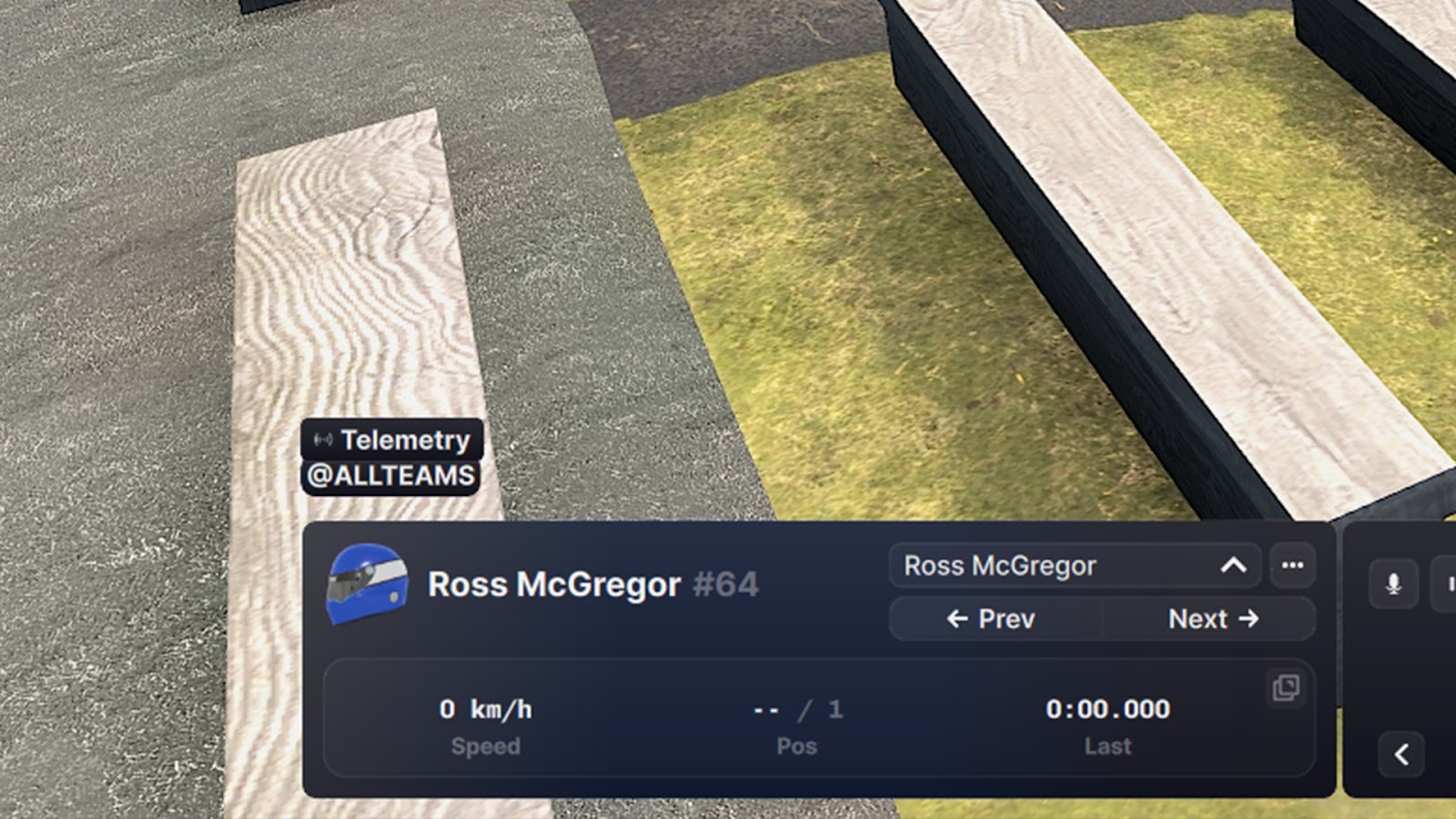
To record telemetry in iRacing, press ALT+L while driving (you can assign a different button if you wish). You will know when this has been activated as the word ‘telemetry’ will appear at the bottom left of your screen.
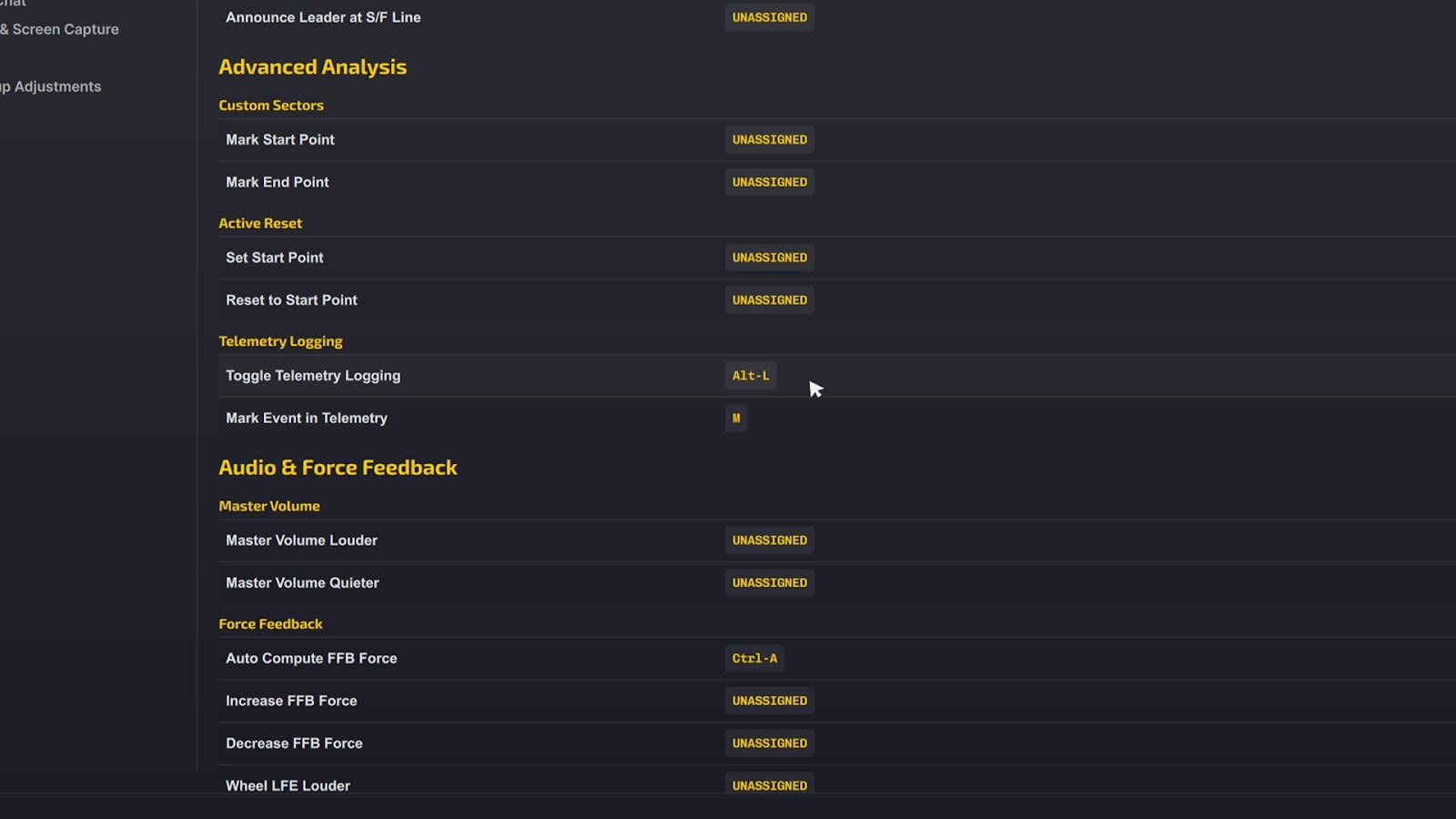
When you no longer wish to record, you can either press the same key combination again or simply finish the session. iRacing will then save the recorded session as a .ibt telemetry file on your computer.
Where Are iRacing’s .ibt Telemetry Files Located?
After recording, your saved .ibt telemetry files are located in Documents/iRacing/telemetry by default.
Each time telemetry is recorded, iRacing creates a new .ibt file containing the data from that session.
These are the raw telemetry files that can then be opened directly in compatible software or converted for use with other telemetry analysis tools.
How Do I Analyze iRacing’s Telemetry Files?
To analyze the iRacing telemetry you have recorded, you will need an application to interpret it. This can be done using free telemetry-reading applications, including MoTeC.
There are also several popular iRacing telemetry tools available, with Cosworth Pi Toolbox, MoTeC, and Garage 61 among the most commonly used options.
Each approaches telemetry analysis slightly differently, so the best choice depends on how detailed you want your analysis to be and whether you want to compare your laps against other drivers.
How Does Cosworth Pi Toolbox Work With iRacing?
There are many paid programs available, but thanks to a collaboration with British engineering firm Cosworth, iRacing has made a free version of its Pi Toolbox software available to all iRacers.
Pi Toolbox can natively read iRacing .ibt telemetry files and offers motorsport-style data visualisation through pre-built iRacing workbooks. It is a strong option if you want detailed control over the channels and graphs you use to analyse your driving.
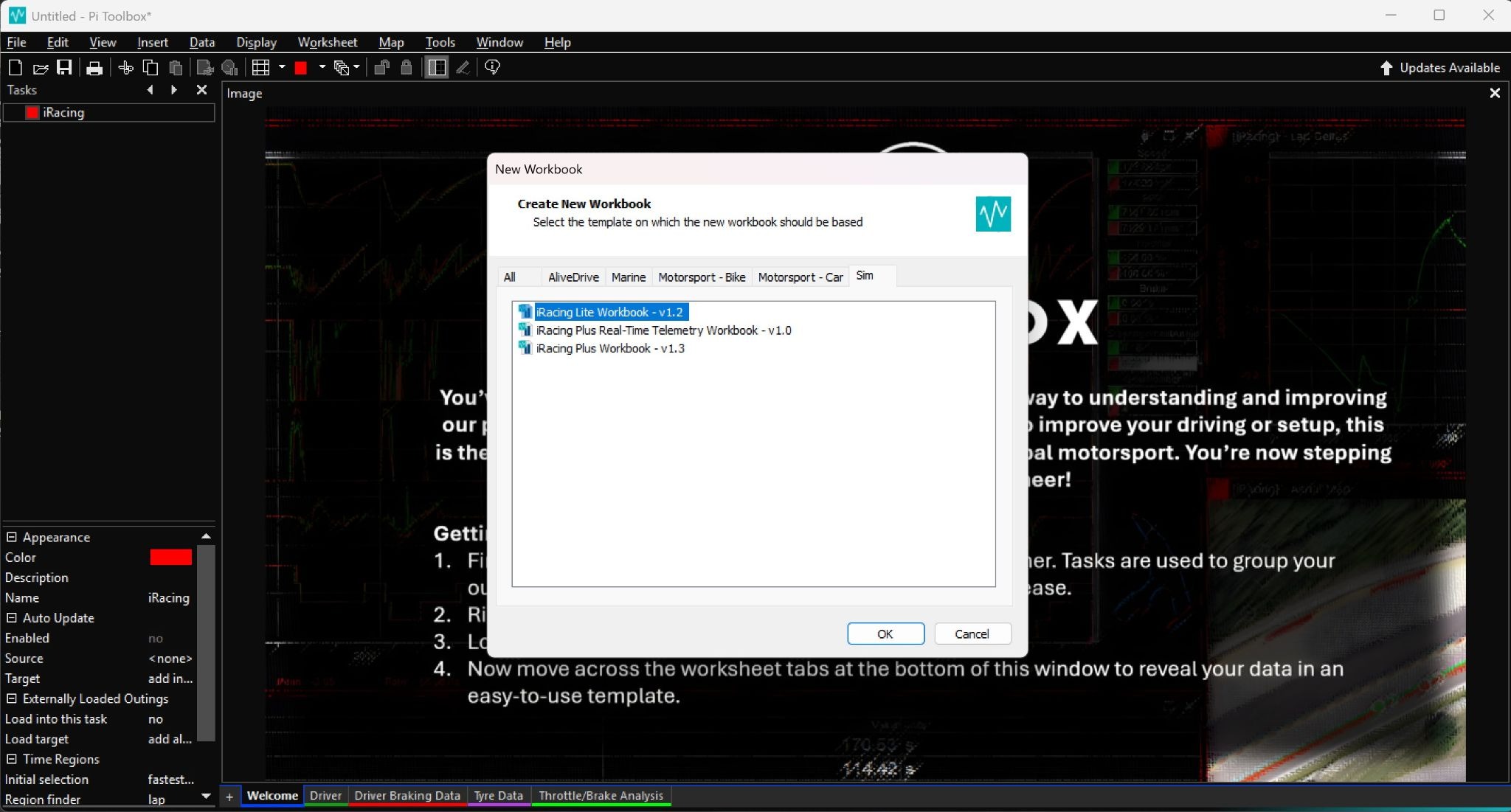
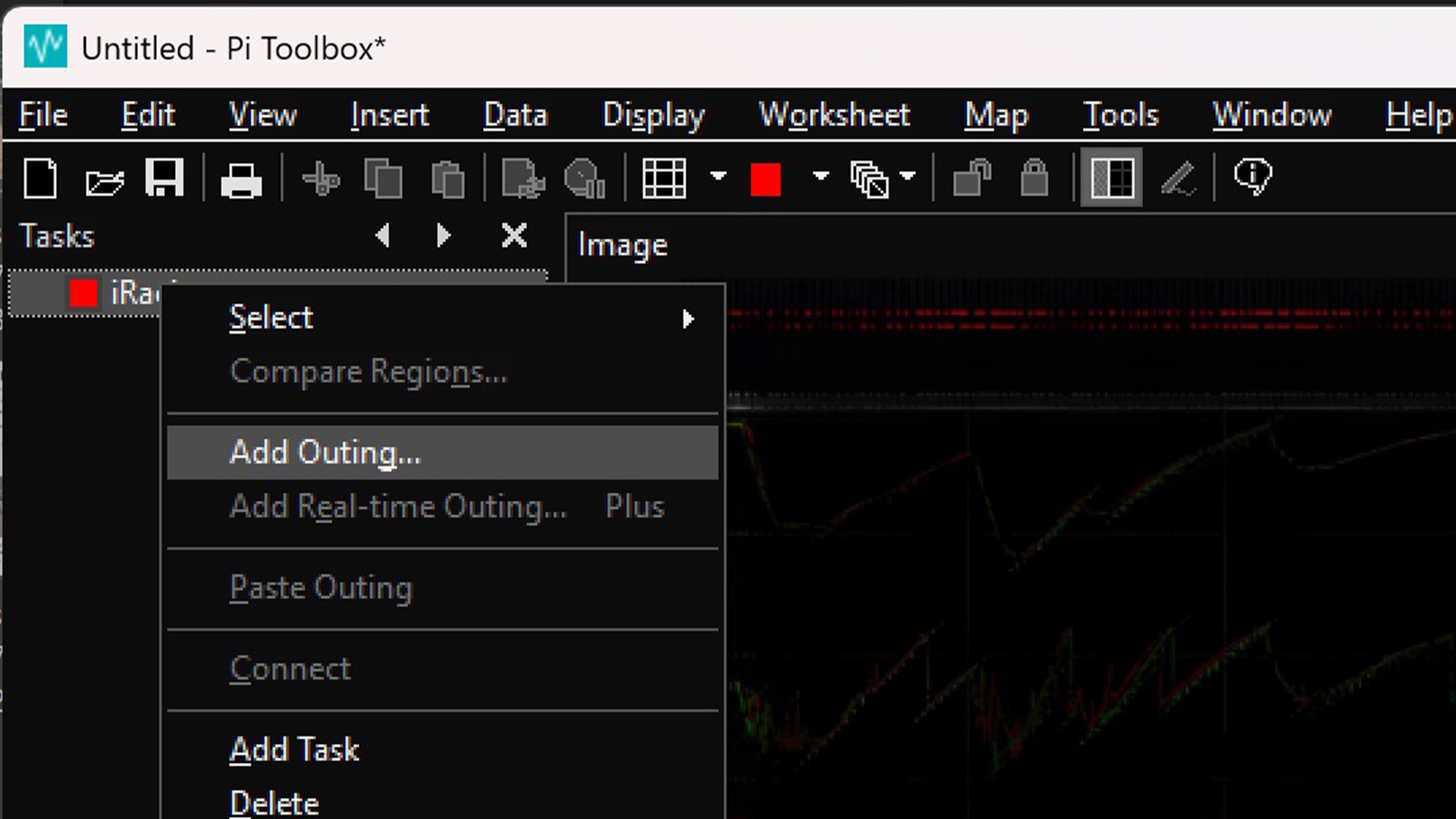
For the purposes of showcasing telemetry, we have used Pi Toolbox to show the basics of reading its data. To add an iRacing .ibt file to this, first create a new ‘iRacing Lite Workbook - v1.2’ file, then right-click on ‘iRacing’ and select ‘Add Outing’.
Here, select your desired .ibt files, and it will duly load into the new workbook. To overlay another driver’s data in the same document, simply add their ‘Outing’ via the same process.
Can You Use MoTeC for iRacing Telemetry?
Yes. MoTeC i2 is another popular option for detailed motorsport telemetry analysis.
Unlike Pi Toolbox, however, MoTeC does not directly read iRacing's .ibt files. You will normally need to convert the telemetry first using a tool such as Mu, which converts iRacing .ibt files into a format that can be opened in MoTeC i2.
MoTeC is particularly useful for drivers who want to dig into detailed channels, create custom worksheets or perform more advanced vehicle and setup analysis.
How Does Garage 61 Analyze iRacing Telemetry?
Garage 61 takes a more community-focused approach to telemetry analysis. Its telemetry agent collects your driving data and uploads it to the platform, where you can analyse your laps and search for other drivers' telemetry to compare against.
This can make it easier to answer questions such as how much later a faster driver brakes, how much minimum speed they carry through a corner or where their racing line differs from yours.
Garage 61 also offers lap filtering, ghost laps and setup comparison features, making it particularly useful if you want to find comparable laps from drivers using the same car and track combination.
Which iRacing Telemetry Tool Should You Use?
There isn’t one telemetry app that will be best for every iRacing driver.
Pi Toolbox is a good starting point if you want detailed, motorsport-style analysis with direct .ibt support. MoTeC is suited to more advanced or highly custom analysis, while Garage 61 is useful for comparing community laps.
trophi.ai is another option if your main goal is using telemetry to become a faster driver rather than digging through engineering-style data. Its Pro Telemetry and Lap Analysis tools let you compare your braking, throttle, steering, speed and racing line against reference data, while Mansell AI uses your driving data to give you actionable coaching while you’re on track.
In other words, traditional telemetry tools show you the data. trophi.ai is designed to help turn that data into something you can actually work on as a driver.
Whichever tool you choose, the data itself is only useful if you know which differences actually matter. Start with a small number of key traces rather than attempting to analyse every available channel at once.
What Are The Main Practical Advantages of Telemetry?
At the most basic level, throttle, brake, and steering-angle traces are powerful facets of evaluating telemetry data. In the example below, the brake trace is marked in red, the throttle is green, and the steering angle is in white.
Other aspects are also shown, including gear number (yellow), speed (purple) and RPM (blue).
Further information is also available under the ‘Tyre Data’ heading, including yaw rate, tyre pressures and tyre temperatures. Using a combination of these, it’s possible to determine where improvements can be made with your driving.
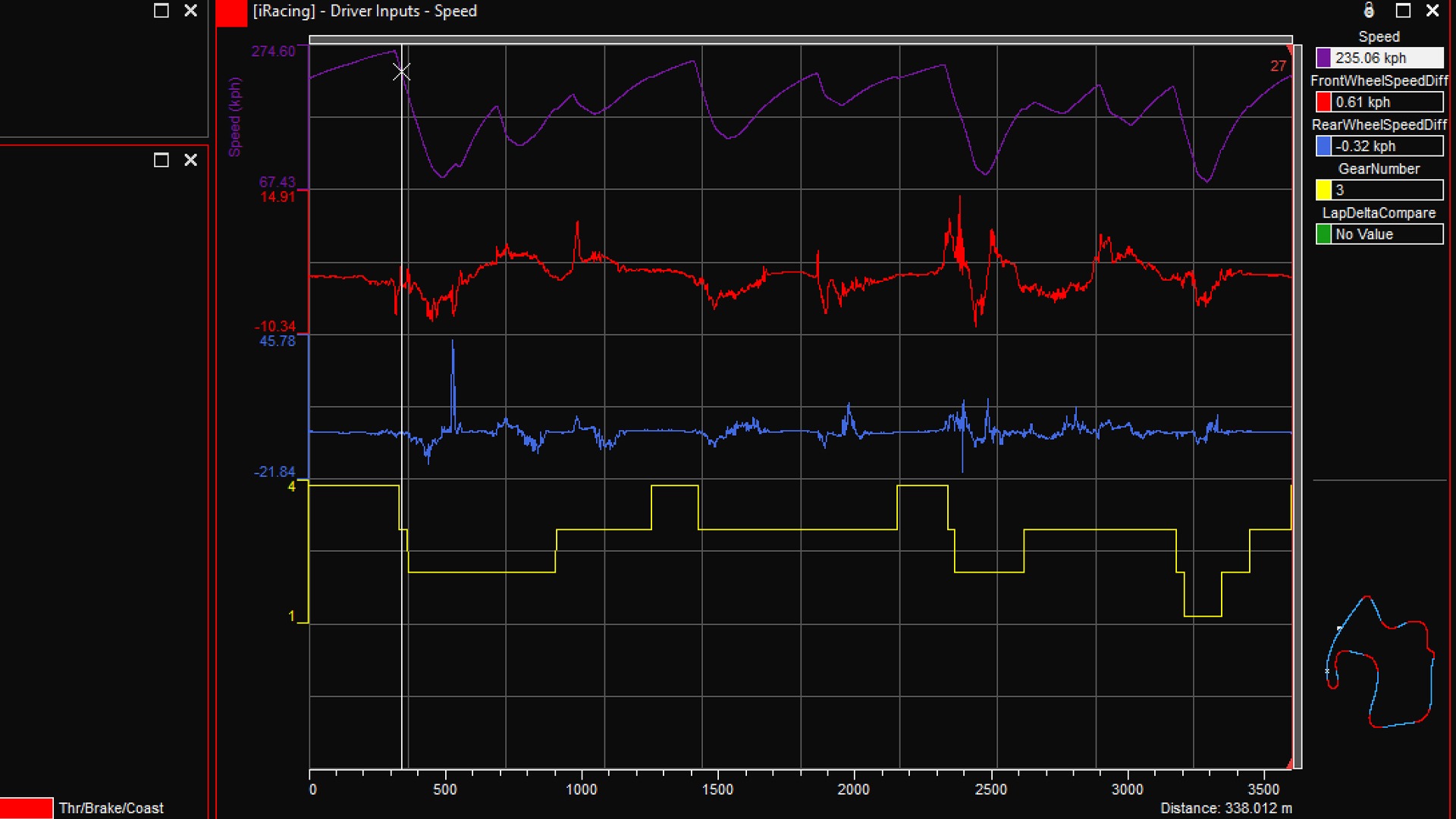
With telemetry traces, you can see how each input is applied and for how long, with an accompanying track map that shows where your car is on the track at any given data point.
Analyzing telemetry is the clearest and most concise way to see where and when your driving can be improved, especially when you overlay your data with a faster driver's.
When comparing laps, it generally helps to start with four things:
1. Where each driver begins braking.
2. How quickly and smoothly brake pressure is released.
3. The minimum speed carried through the corner.
4. When and how aggressively the throttle is reapplied.
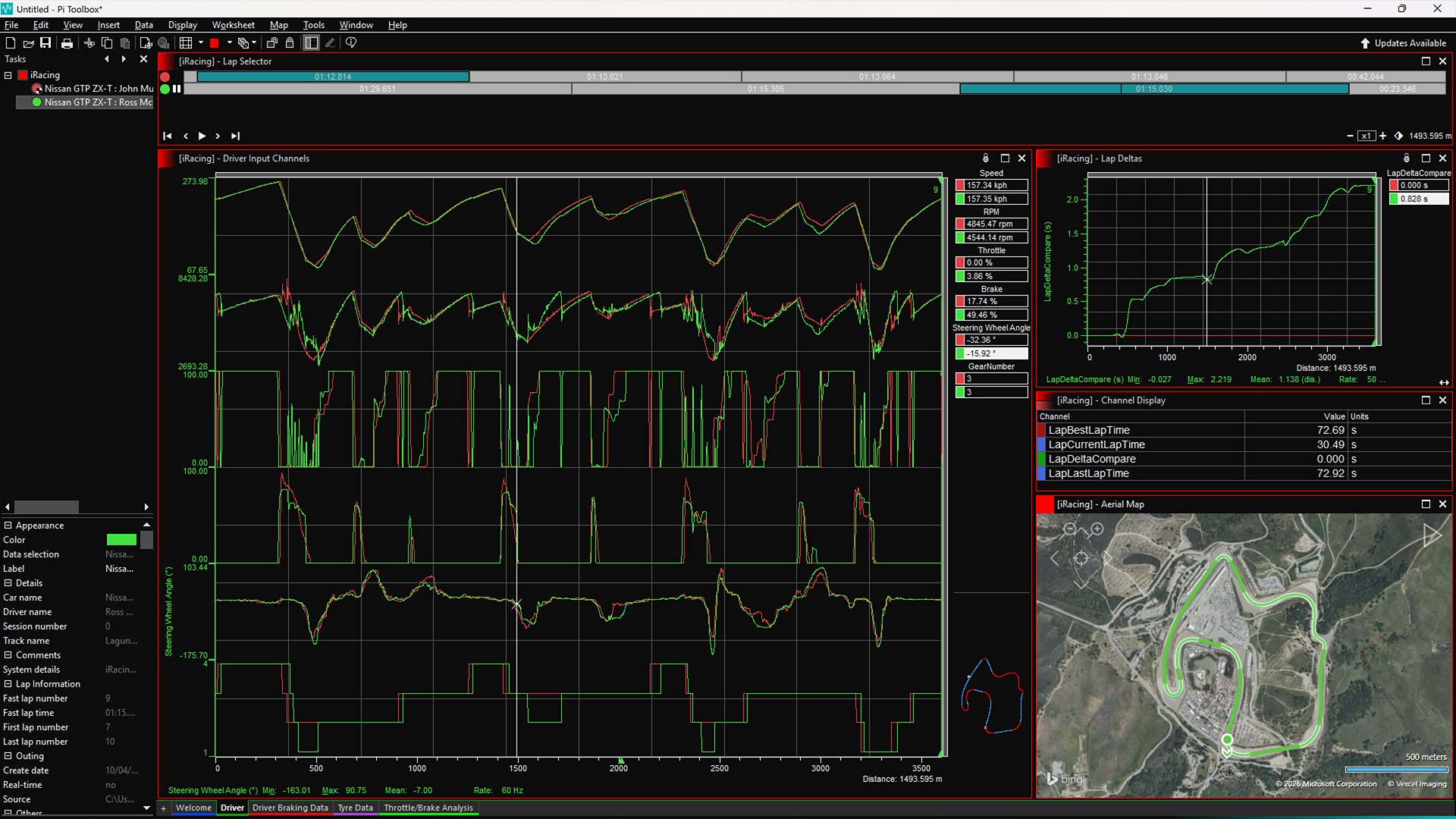
This will highlight even more areas of improvement, as you can see how much earlier or later they apply the brakes and throttle. As you can see in the example below, the green traces for one driver (especially the throttle and brake) are messier and more pronounced than those for the driver shown in red. It’s not always an indication of faster lap times, but in this case, it provides some insight into areas for improvement.
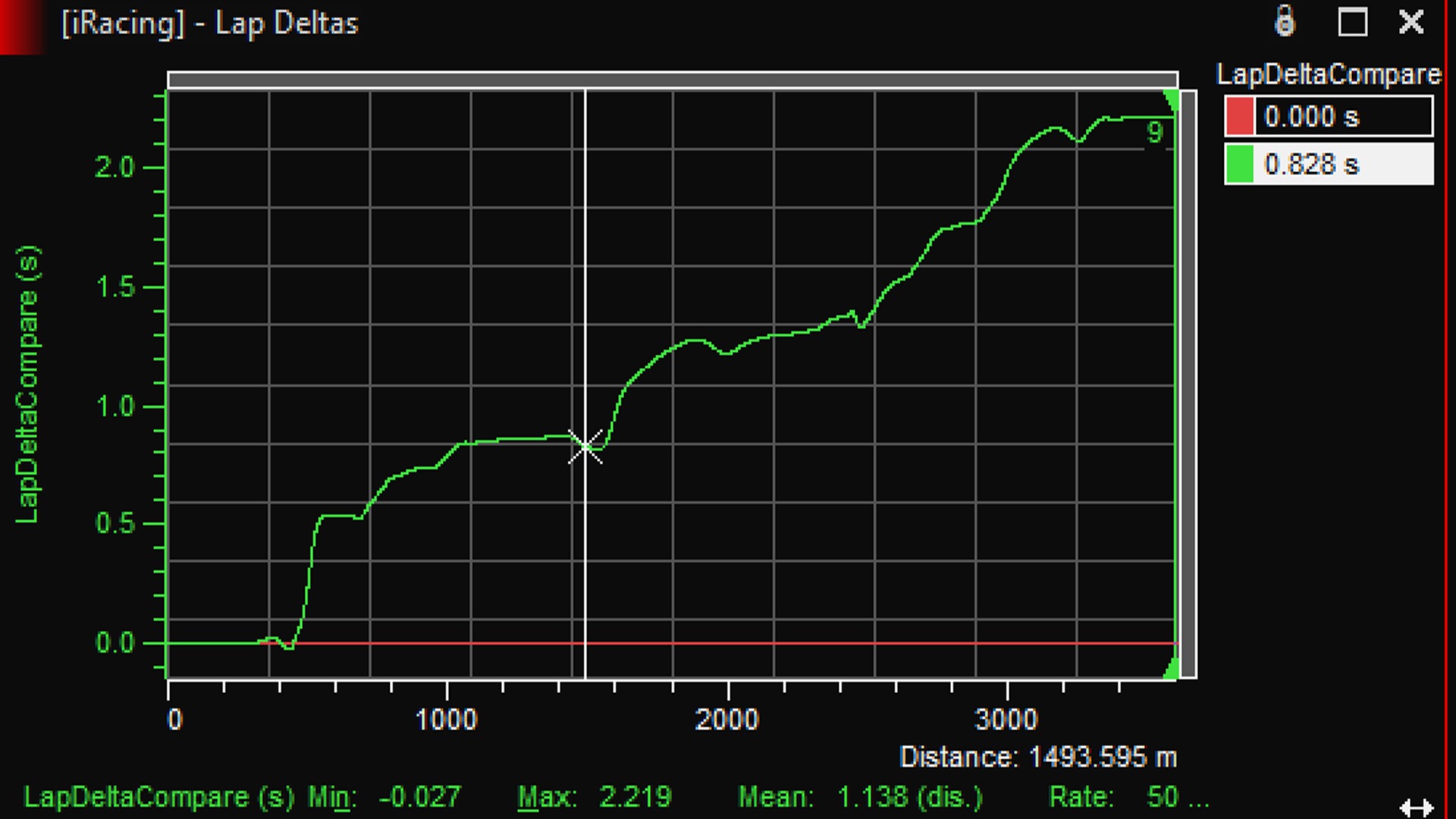
The lap delta graph also gives a clearer indication of where you’re losing time across the lap, for a more general picture of potential gains.
Using more advanced telemetry metrics, you can also compare the driver's racing line, providing a clearer understanding of where lap time can be gained.
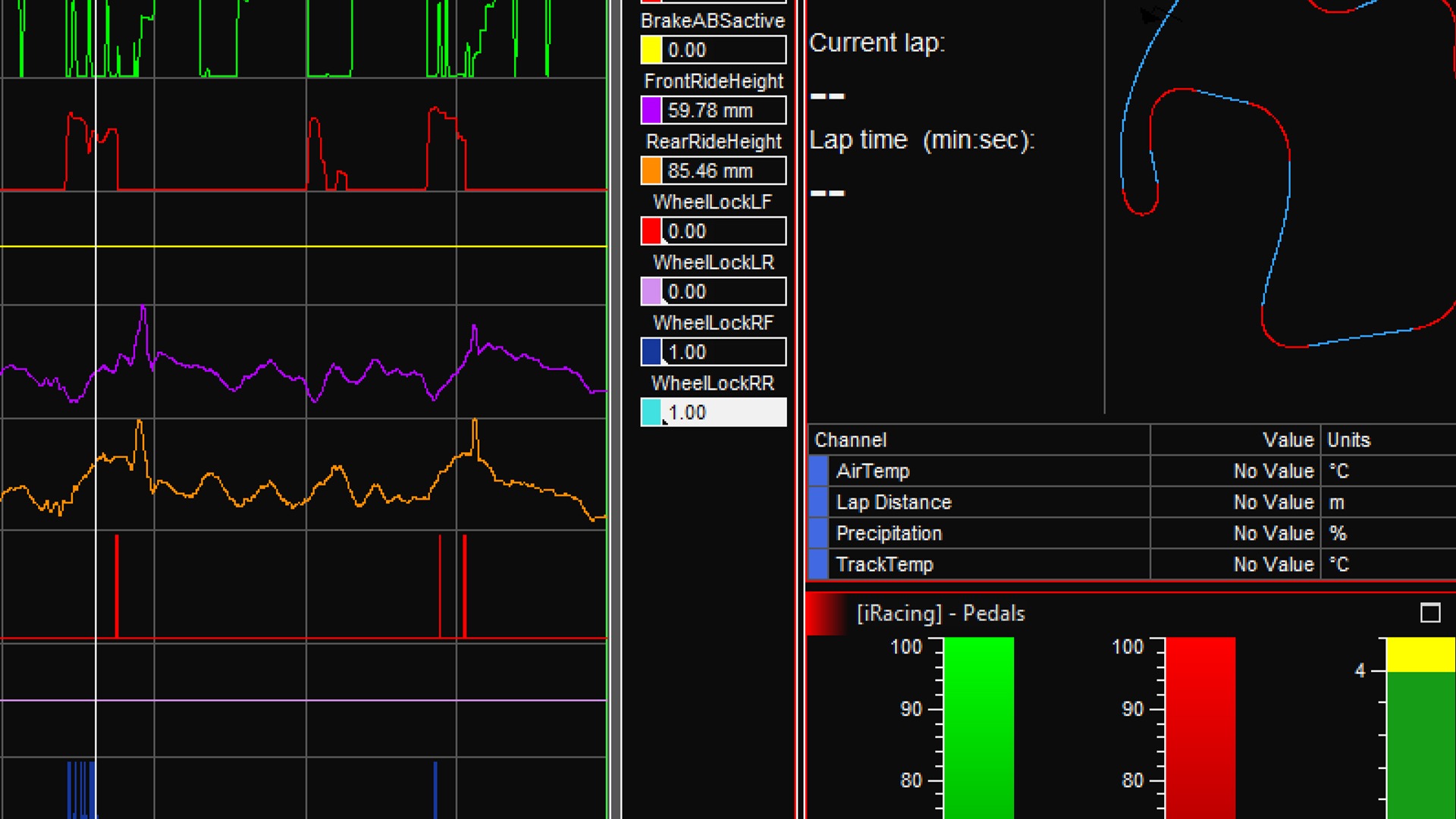
In the most basic tier of Pi Toolbox, it’s also possible to see where you’re applying too much brake pressure, leading to a wheel lock-up. This is denoted in the ‘Driver Braking Data’ tab and shown on the centre-right of the screen (a lock-up is displayed as a ‘1’ value, as opposed to ‘0’).
Setup Analysis Using Telemetry
Telemetry is also useful for performing back-to-back analysis of setups. This way, you can see how much faster your car is through a corner after a setup change, or how its top speed compares (for example, higher wing settings will likely increase corner speeds, but the extra drag will reduce top speeds).
This can be judged alongside more advanced tyre and suspension settings (damper analysis is an area of setup that likely requires its own standalone guide and is a feature of paid-for telemetry analysis tools), with pressure and heat markers that can determine a setup direction regarding camber, caster and toe settings.
The important part is to make setup changes one at a time wherever possible. Comparing telemetry from two laps where multiple setup parameters have changed makes it much harder to identify what actually produced the difference.
How Can You Turn Telemetry Data Into Faster Lap Times?
Telemetry becomes most useful when you turn the graphs into one or two specific things to practise on your next run.
For example, the data might show that you brake 15 metres earlier than a faster driver into one corner. But simply deciding to “brake later” may not solve the problem. Their telemetry may also show that they release the brake differently, carry more minimum speed or position the car differently on entry.
Rather than trying to copy an entire lap, identify the biggest repeatable loss and work on that first. Once it becomes consistent, review your telemetry again and move to the next area.
Ultimately, for beginner and intermediate drivers who require more detailed telemetry analysis, it’s best to consult a qualified professional. Alternatively, you can try trophi.ai’s iRacing driver coaching tools as part of a free seven-day trial.
Harnessing the power of AI, trophi.ai is an app that monitors your virtual driving and offers real-time, telemetry-influenced suggestions to help you become a faster, more consistent sim racer.
trophi.ai’s telemetry analysis is tailored toward drivers rather than engineers, offering an overall view of on-screen steering, brake, and throttle inputs, including a direct comparison with a top-tier racer’s data.
You can sign up for the free trial today.
Written by the teams at trophi.ai and Traxion.GG.
FAQs
Is sim racing telemetry worth it?
Yes, particularly if you have reached a point where simply driving more laps is no longer producing consistent improvements. Telemetry allows you to objectively compare braking points, throttle application, steering, racing line and speed instead of relying entirely on how a lap felt. You do not need to analyse every available data channel, though. For most drivers, concentrating on braking, throttle, speed and lap delta is enough to find meaningful differences.
What is the best telemetry app for iRacing?
Cosworth Pi Toolbox is a strong option for detailed motorsport-style telemetry analysis, while MoTeC offers highly customisable data analysis. Garage 61 is useful for finding and comparing community laps.
trophi.ai is particularly useful if your goal is improving your driving rather than performing engineering-style telemetry analysis. Its Pro Telemetry and Lap Analysis tools help you compare braking, throttle, steering, racing line and speed against reference data, while Mansell AI uses your driving data to provide real-time coaching on track.
So, if you mainly want to inspect raw data, Pi Toolbox or MoTeC may make more sense. If you want telemetry translated into actionable ways to improve your lap time, trophi.ai is designed specifically around that use case.
Where can I find iRacing telemetry data?
Telemetry that you record directly through iRacing is stored by default in Documents/iRacing/telemetry as .ibt files.
Platforms such as Garage 61 and trophi.ai can also collect and store telemetry through their own logging applications, allowing you to access and compare the data through their platforms.
Can you view telemetry in iRacing?
iRacing can record telemetry while you drive, but detailed post-session analysis is generally performed using external telemetry software such as Pi Toolbox, MoTeC, Garage 61 or trophi.ai.
How do you turn on telemetry in iRacing? Press ALT+L to arm telemetry logging. A telemetry indicator will appear in iRacing to show that the feature has been activated. When you drive, iRacing will record the session and save the resulting .ibt file to your telemetry folder.
Is there a free iRacing telemetry tool?
Yes. Cosworth Pi Toolbox is available to iRacing users for free, and Garage 61 also offer free telemetry functionality with additional features available through paid plans. MoTeC i2 can also be downloaded for free, although you will need to convert iRacing .ibt telemetry before analysing it in MoTeC.
Can I convert telemetry files for Pi Toolbox or MoTeC?
Yes. Tools such as Mu can convert iRacing .ibt telemetry files into a format readable by MoTeC i2. Pi Toolbox does not require this conversion step because its iRacing integration can read .ibt files directly.


